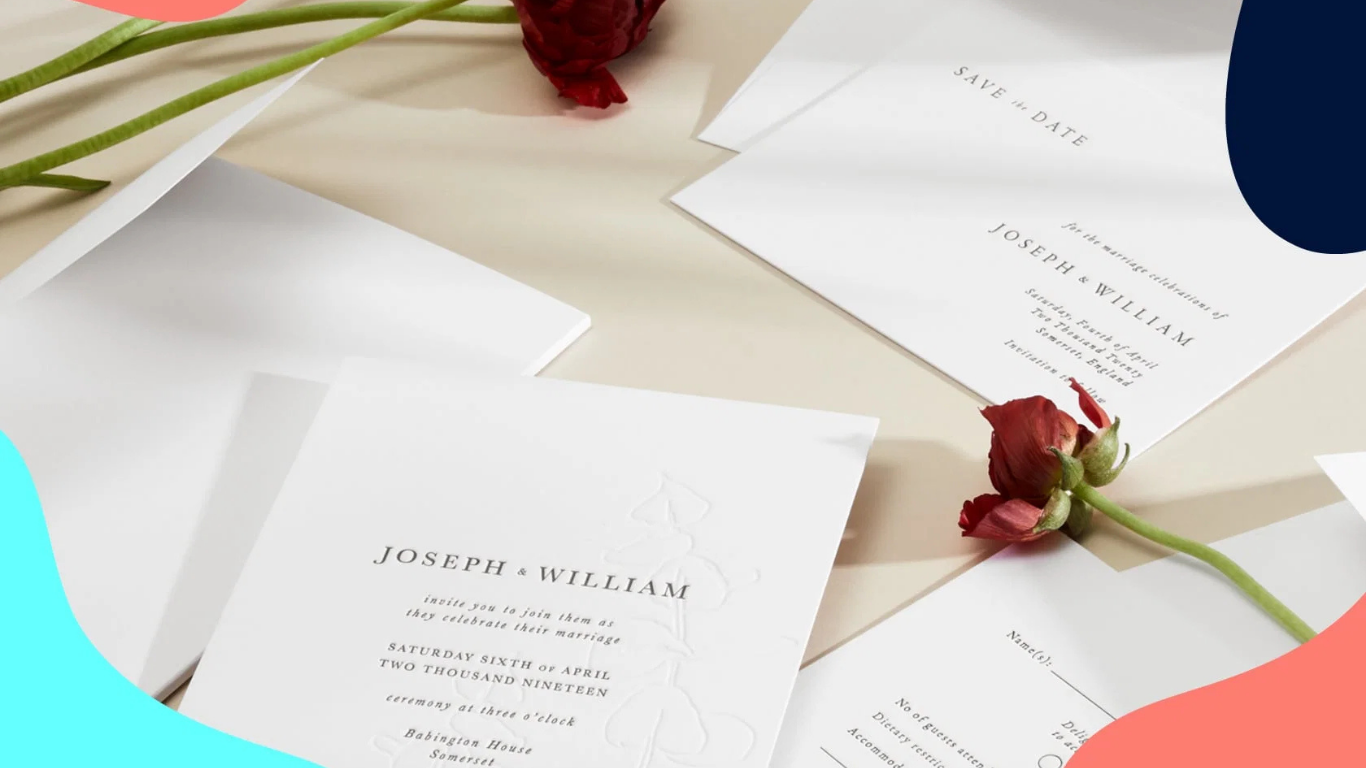
An invitation establishes tone before an event begins. It communicates schedule, location, and expectations in a format that should be clear at a glance. When structured correctly, it reduces follow-up questions and improves attendance coordination.
For those without formal design training, layout decisions can feel technical. Margins, typography hierarchy, spacing, and export settings all influence the final result. Custom invitation makers reduce this complexity by offering structured templates and guided formatting controls.
Rather than building designs from a blank canvas, users modify preset layouts and focus on clarity and accuracy. The workflow below outlines how to move from template selection to RSVP tracking and print-ready export in a systematic way.
Step-by-Step How-To Guide for Using Custom Invitation Makers
Step 1: Start From a Structured Template
Goal
Establish a balanced layout quickly without manual alignment work.
How to do it
- Select a template aligned with the event type (corporate, formal, celebratory).
- Replace placeholder text before adjusting styling.
- Maintain built-in alignment guides.
- Adjust font sizes before changing font families.
- Begin with a structured layout such as free print out invitations from Adobe Express, which provides preset dimensions and consistent spacing.
What to watch for
- Overcrowding the template with extra elements.
- Removing spacing guides too early.
- Changing multiple fonts simultaneously.
- Ignoring safe margins.
Tool notes
Adobe Express offers categorized templates with preset sizing. For more detailed layout control, Affinity Publisher or Microsoft Publisher provide structured page tools, though they require additional setup time.
Step 2: Customize Fonts, Colors, and Visual Hierarchy
Goal
Align the invitation visually with the event’s tone or brand identity.
How to do it
- Limit typography to two complementary fonts.
- Use color to emphasize key details such as date and location.
- Maintain consistent alignment across all text blocks.
- Keep body text readable and high contrast.
- Resize elements proportionally rather than stretching them.
What to watch for
- Decorative fonts that reduce clarity.
- Low contrast between background and text.
- Inconsistent spacing between sections.
- Overuse of accent colors.
Tool notes
Many platforms offer brand kit features. If managing company-wide assets, Frontify or Bynder can help centralize approved fonts and colors before importing them into your design tool.
Step 3: Set Up RSVP Tracking
Goal
Create a clear and organized response system.
How to do it
- Choose a single RSVP method (email reply, form link, QR code).
- Clearly state the RSVP deadline.
- Keep response instructions brief.
- Test any links before distribution.
- Make the RSVP section visually distinct.
What to watch for
- Offering multiple response channels.
- Long URLs that are difficult to type manually.
- Missing response deadlines.
- Broken links.
Tool notes
Google Forms or Jotform can collect structured responses. QR codes can be generated within Adobe Express or through simple QR generators and embedded directly in the invitation.
Step 4: Enable RSVP Integrations and Calendar Sync
Goal
Automate attendance tracking and reduce manual follow-up.
How to do it
- Connect RSVP forms to a spreadsheet.
- Enable automated confirmation emails.
- Add calendar invite links.
- Sync responses with event management software if needed.
- Confirm time zone accuracy.
What to watch for
- Duplicate entries.
- Incorrect time settings.
- Missing location or virtual meeting links.
- Delayed data syncing.
Tool notes
Calendar platforms such as Google Calendar and Outlook simplify event syncing. For larger corporate events, platforms like Eventbrite or Cvent can centralize guest management alongside invitation distribution.
Step 5: Review Print File Requirements
Goal
Prepare a technically correct file for printing.
How to do it
- Confirm final trim size (e.g., 5×7 inches).
- Add bleed margins if the design extends to the edge.
- Keep text within safe zones.
- Set resolution to 300 dpi.
- Export in CMYK if required by the printer.
What to watch for
- RGB color exports causing print shifts.
- Text positioned too close to trim lines.
- Low-resolution images.
- Missing bleed settings.
Tool notes
Adobe Express supports high-resolution PDF export. For advanced preflight checks, Adobe Acrobat Pro can verify embedded fonts and color profiles before submission.
Step 6: Finalize Custom Order Details
Goal
Confirm production specifications before approving the order.
How to do it
- Select paper weight and finish (matte, gloss, textured).
- Confirm quantity based on guest list.
- Review digital proofs carefully.
- Check estimated turnaround times.
- Verify shipping or pickup logistics.
What to watch for
- Overlooking typographical errors.
- Ordering insufficient quantity.
- Selecting the wrong paper stock.
- Approving a proof without zooming in.
Tool notes
Online print providers often provide instant proof previews. Comparing specifications across vendors can clarify paper options and finishing differences.
Step 7: Coordinate Distribution and Track Attendance
Goal
Ensure invitations reach recipients and responses are monitored.
How to do it
- Schedule digital sends at an appropriate time.
- Confirm mailing addresses for printed invitations.
- Monitor RSVP totals consistently.
- Send reminders before deadlines.
- Maintain a master attendance list.
What to watch for
- Sending outdated versions.
- Duplicate entries in tracking sheets.
- Missing reminder windows.
- Incorrect recipient information.
Tool notes
For corporate or recurring events, CRM systems such as HubSpot or Salesforce can centralize invitation lists and RSVP tracking alongside contact records.
Common Workflow Variations
Photo-Focused Invitations
Use high-resolution images and test cropping before export. Maintain consistent margins around photos to prevent trimming errors.
Corporate Events
Prioritize typography hierarchy and restrained color palettes. Calendar integration often matters more than decorative design.
Digital-Only Invitations
Export as high-resolution PNG files and prioritize clickable RSVP links instead of bleed settings.
Recurring Event Series
Save a master template to reuse across multiple dates, adjusting only event details each time.
Before You Start Checklist
- Confirm event date, time, and location.
- Finalize guest list.
- Gather high-resolution images.
- Decide RSVP method.
- Confirm invitation dimensions.
- Establish print or digital distribution plan.
- Set proofing timeline.
- Review brand standards if applicable.
Pre-Export / Pre-Order Checklist
- Resolution set to 300 dpi.
- Bleed included if required.
- CMYK selected for print.
- All text proofread carefully.
- Safe margins respected.
- Links and QR codes tested.
- Correct file format selected (PDF for print).
- Final preview reviewed at 100% zoom.
Common Issues and Fixes
Low-Resolution Images
Replace small files rather than enlarging them.
Text Too Close to Edges
Reposition inside safe margins.
Color Shifts in Print
Switch from RGB to CMYK before export.
Unexpected Cropping
Preview bleed and trim areas carefully.
Incorrect Dimensions
Confirm document size before exporting.
How To Use Custom Invitation Makers: FAQs
Should I design first or confirm print specifications first?
If using standard sizes, templates simplify a design-first approach. Specialty formats benefit from confirming print specs early.
Is digital-only distribution acceptable for formal events?
Corporate and informational events commonly use digital invitations. Formal ceremonies may still require printed versions.
What is the safest export format for professional printing?
A high-resolution PDF with bleed and CMYK settings is typically preferred.
How detailed should RSVP instructions be?
Keep instructions concise and limit responses to a single method to reduce confusion.
